Welcome to Tandem
This guide provides an overview of how Tandem supports your teaching workflows. From setting up your first class to delivering secure assessments, everything here is designed to help you manage your subjects effectively.
How Tandem is organised
Tandem centres learning design around Courses. To get started with a new course, please contact your university's Tandem Tertiary Administrator. They will set up the course record for you.
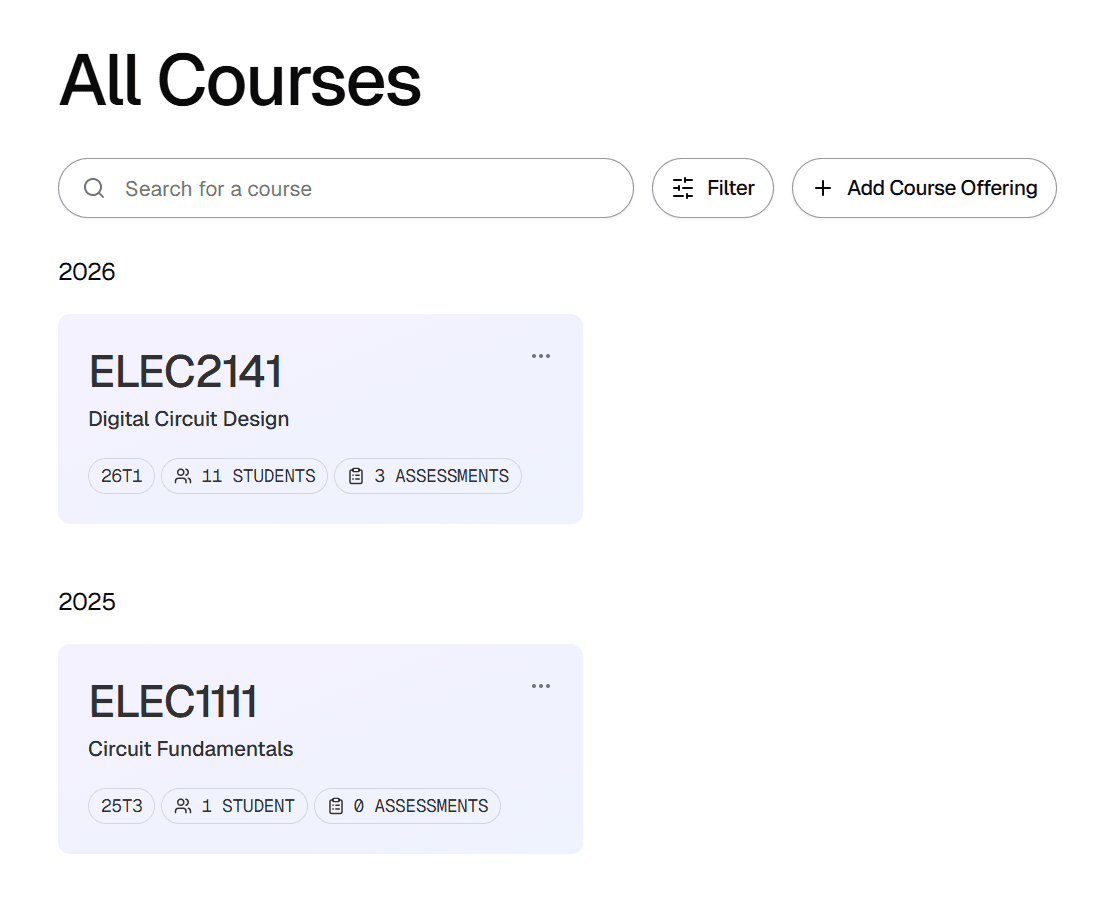
Once a course is set up, you can create Course Offerings for specific teaching periods (e.g. Term 1, 2025). Within each offering, you can invite your teaching team, enrol students, and build assessments using a shared question bank.
Roles and Permissions
Tandem Tertiary Administrators manage the platform across the institution and are the only ones who can register new courses.
Course Owners have full control over their specific courses. They can create offerings, manage teaching staff, and publish assessments.
Offering Admins within a course offering can help manage day-to-day tasks like grading and updating settings, while Students can only access the assessments you publish for them.
Getting started quickly
A typical workflow looks like this:
- Contact your Tandem Tertiary Administrator to create your new course.
- Log in as a Course Owner to create a new Course Offering for the current term and invite your staff.
- Build your Question Bank, then assemble questions into an Assessment.
- Preview your assessment, and when you are ready, publish it to your students.
Where to next
Explore the other guides to learn more about creating assessments, managing your question bank, and analysing student results.