Your First Assessment
Follow this walkthrough to move from a blank course offering to a published assessment that students can attempt. Every step mirrors what happens in the assessment builder today.
Check the prerequisites
You need to be a course owner or an offering admin to create an assessment. Confirm that the question bank for your course already contains at least one question—assessments assemble questions from that shared pool, so the builder cannot proceed without it. If you are missing authoring permissions, ask a Tandem Tertiary administrator to add you as an owner or invite you to the offering with admin access.
Open the assessment builder
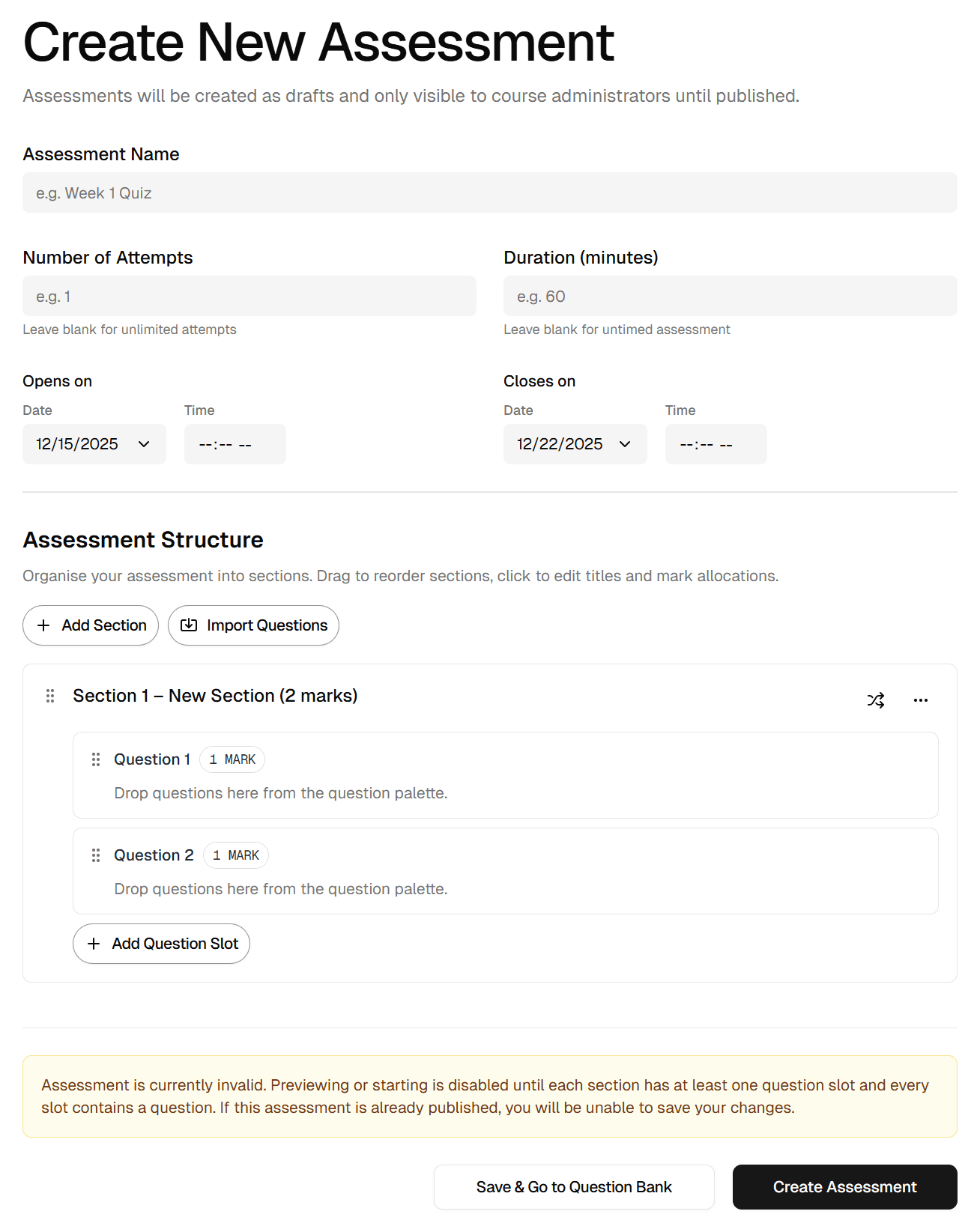
From the course offering sidebar choose Assessments and select Create assessment. Provide a descriptive title, then work through the scheduling panel. Tandem validates that close dates occur after open dates, and it will block creation if the time limit or attempt limit is present but not a positive whole number. Leave the visibility as a draft while you build.
Structure sections and slots
Each section you add can contain multiple slots. A slot represents a question position in the final assessment and can draw from one or more questions in the bank. When you attach several questions to a slot, Tandem will randomly choose one for each attempt. You can also enable slot randomisation at the section level so the order changes per student. Assign marks to each slot; the builder keeps a running total and saves that value to the assessment record.
Preview before publishing
Use the preview option to generate a staff-only attempt. Tandem creates the same attempt record that students receive, including randomised slot order and any generated variables. Walk through the attempt to check timing, question wording, and scoring before you release it to the cohort. Assessment previews are automatically set to a duration of 3 hours. Previews can be accessed at any time.
Publish and monitor
Once you are satisfied, change the visibility to Published. Students enrolled in the offering will see the assessment on their timeline and in the assessment list as soon as the open time arrives. As submissions come in, Tandem automatically grades each attempt and updates the insights area so you can monitor progress without leaving the platform.