Inviting Students & Staff
Your course offering is the central hub for your teaching team and students. This guide covers how to bring everyone on board, assign permissions, and manage your class list.
Adding people
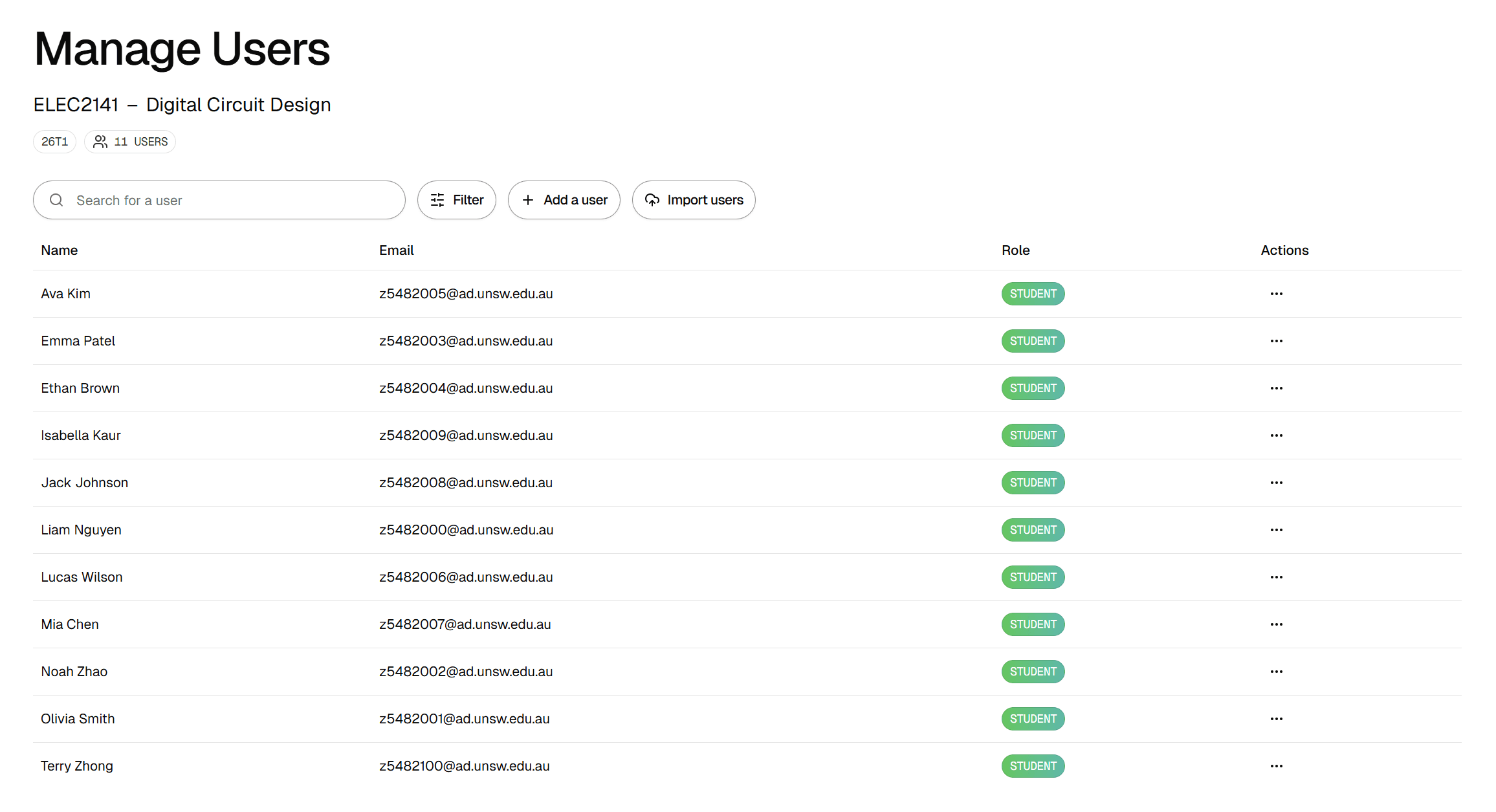
You can add new users to your offering in two ways: individually or in bulk. To get started, navigate to the Manage Users tab in your course dashboard.
Adding a single user
Click the Add a user button. You will need to enter their email address and choose a permission level. If they don't have a Tandem account yet, one will be created for them automatically.
Bulk import from Moodle
For large classes, you don't need to add everyone by hand. As a Course Owner or Offering Admin, you can export your student list from Moodle as a CSV file and import it directly into Tandem. Look for the Import users option in the Manage Users tab to upload your file.
Choosing the right permission
When you add someone, you define what they can see and do within the offering.
- 1Course Owner
Full control over the entire course. Can create new offerings (e.g. for a new term), manage all staff, and has full access to every offering of the course.
- 2Offering Admin
Full control within a specific offering. Can manage assessments, questions, and users for that teaching period, but cannot create new offerings.
- 3Student
Can only view and attempt assessments that have been explicitly published.
- 4Tutor
Currently unused. This role has the same permissions as a Student and does not grant any special teaching privileges at this time.
Updating the class list
If a student drops the course or a staff member changes roles, you can update their record instantly. In the user list, simply select a new role from the dropdown menu to change their permissions, or remove them from the offering entirely if they no longer need access.