Question Builder
The question builder is where you create and refine reusable questions for your course. It combines a rich editor, answer configuration, and validation so each question behaves predictably inside assessments.
Creating questions
To create a question, start by typing out the question in the question text box. This text box mirrors the style of Notion, providing a familiar and powerful editing experience.
You can use the drop down on the top left to select different components like headings, lists, or code blocks.
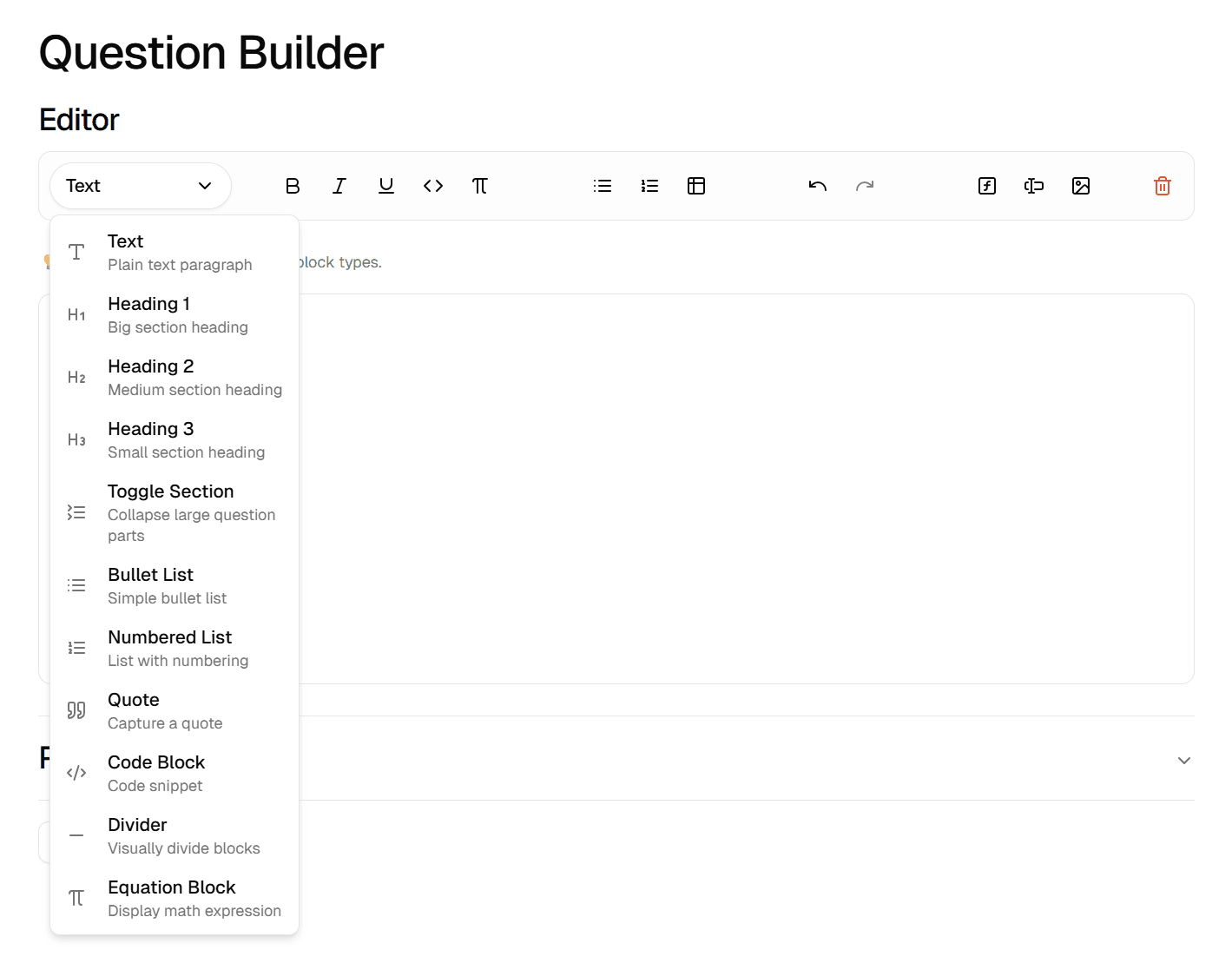
Alternatively, slash commands can be used for more convenient access. Simply type / to see the available options.
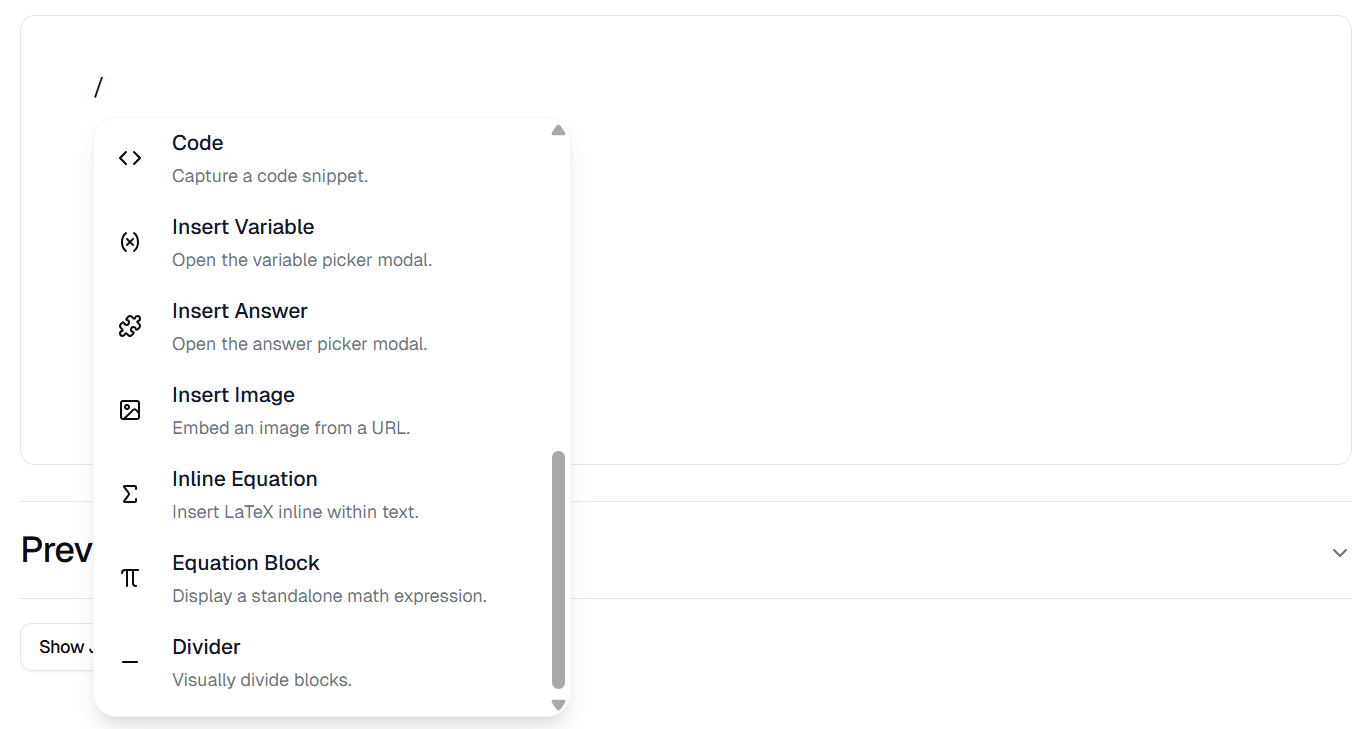
Adding equations
Mathematical equations can be added in three ways: as a standalone block for emphasis, inline with your text, or by using explicit syntax.
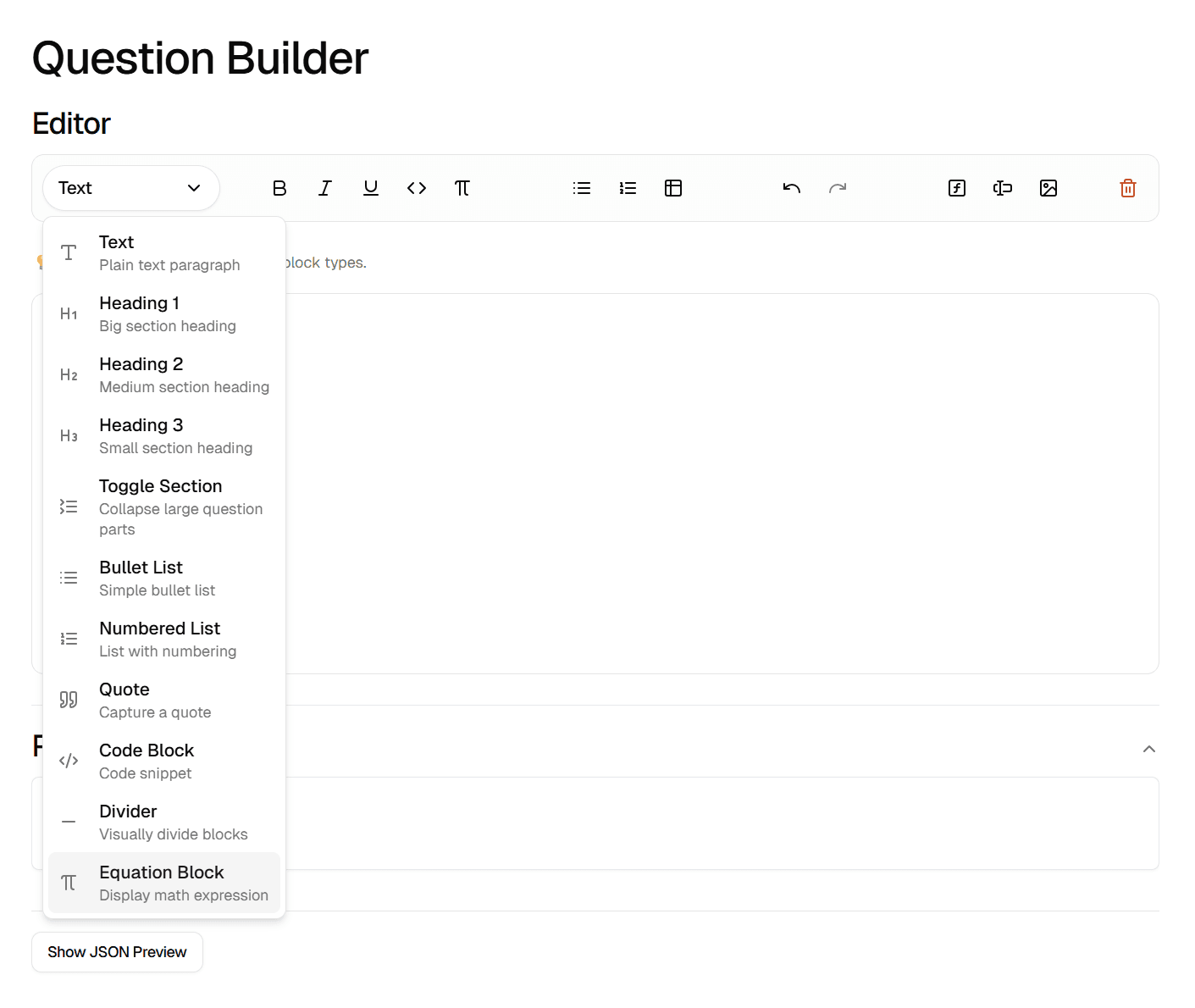
Equation block
This provides a dedicated, centred equation environment. It can be accessed using the dropdown or the slash command.
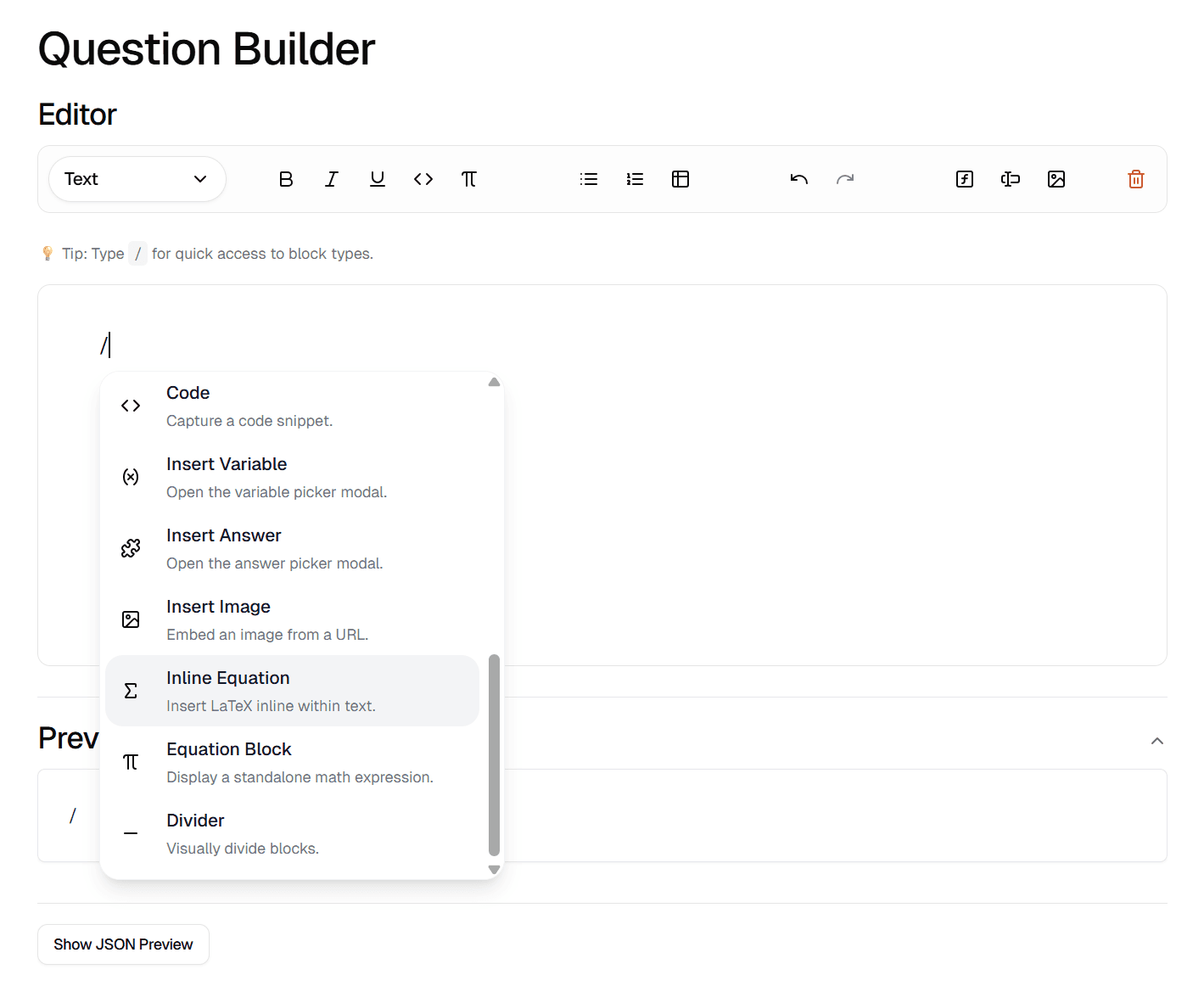
Inline equation
This creates an equation to fit seamlessly with other text. This can only be obtained using a slash command.
Explicit syntax
You can also create an inline equation by wrapping your LaTeX in double dollar signs, e.g. $$x^2$$.
The result is a clean, formatted equation that renders perfectly for students.
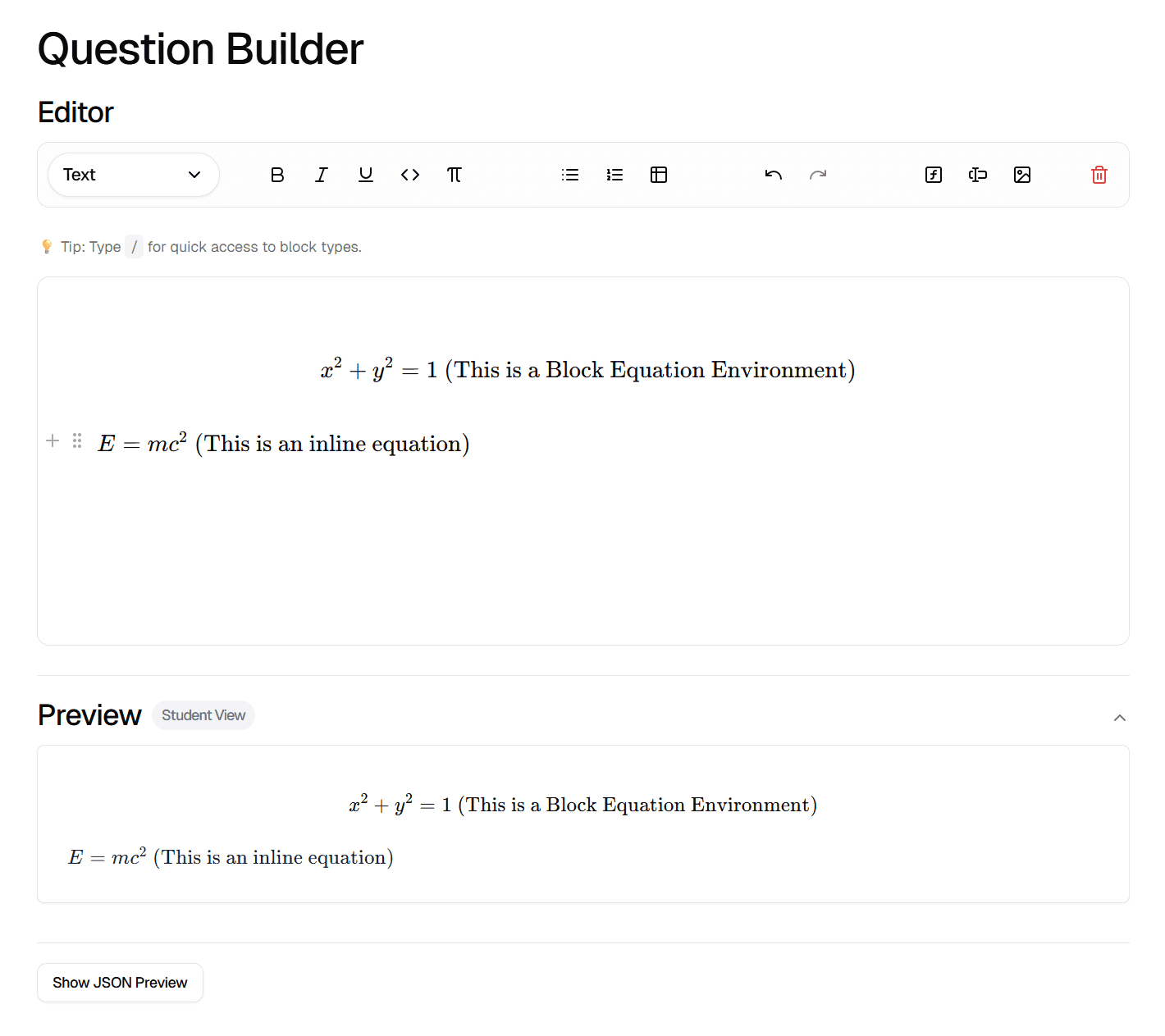
Creating answers
Once you have defined the question stem, you need to create answers. Answers can be created in a variety of forms to suit different assessment needs. After answers are created, they need to be added to the question text box using the slash command /ans. Otherwise, the student will be unable to input an answer.
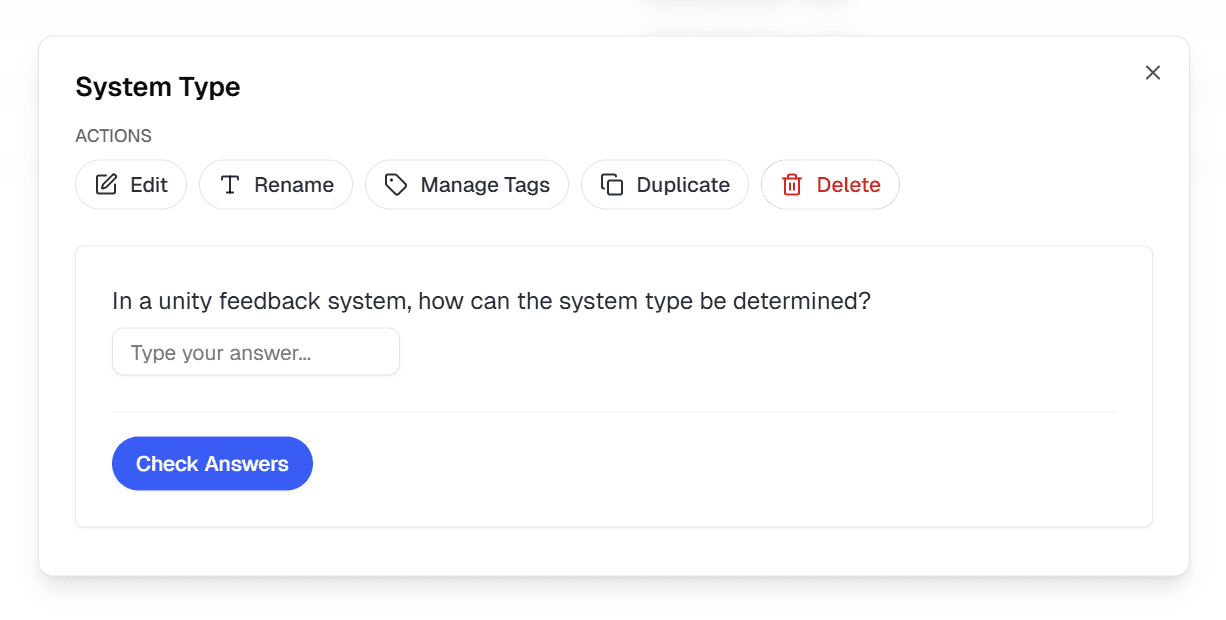
Text answers
Standard text inputs for short or long form responses.
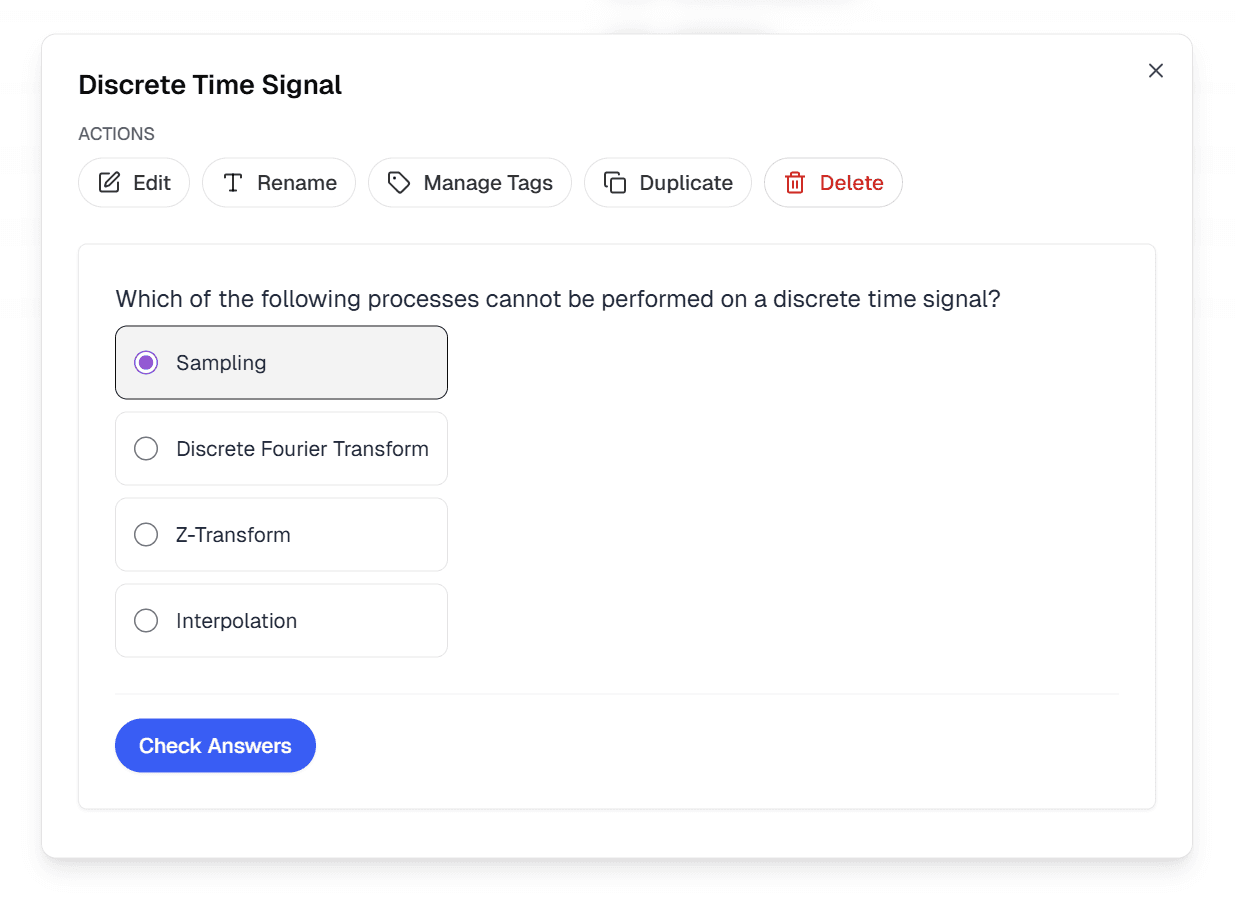
Multiple choice
Single-select options where students choose one correct answer from a list.
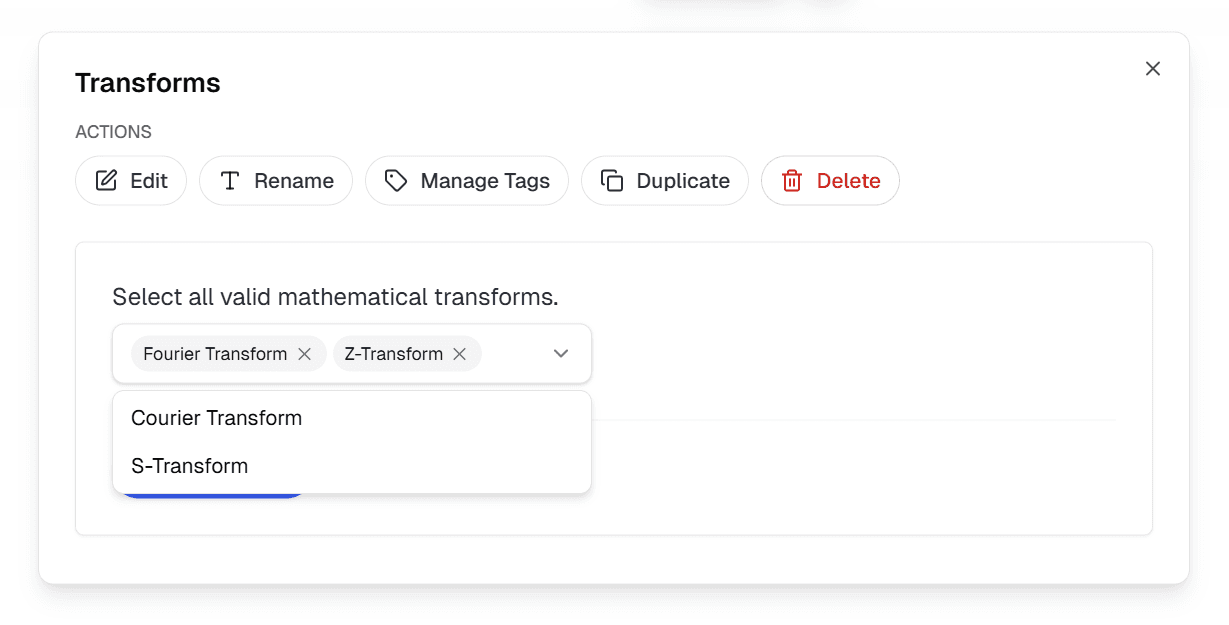
Multiple select
Allows students to select more than one correct option.
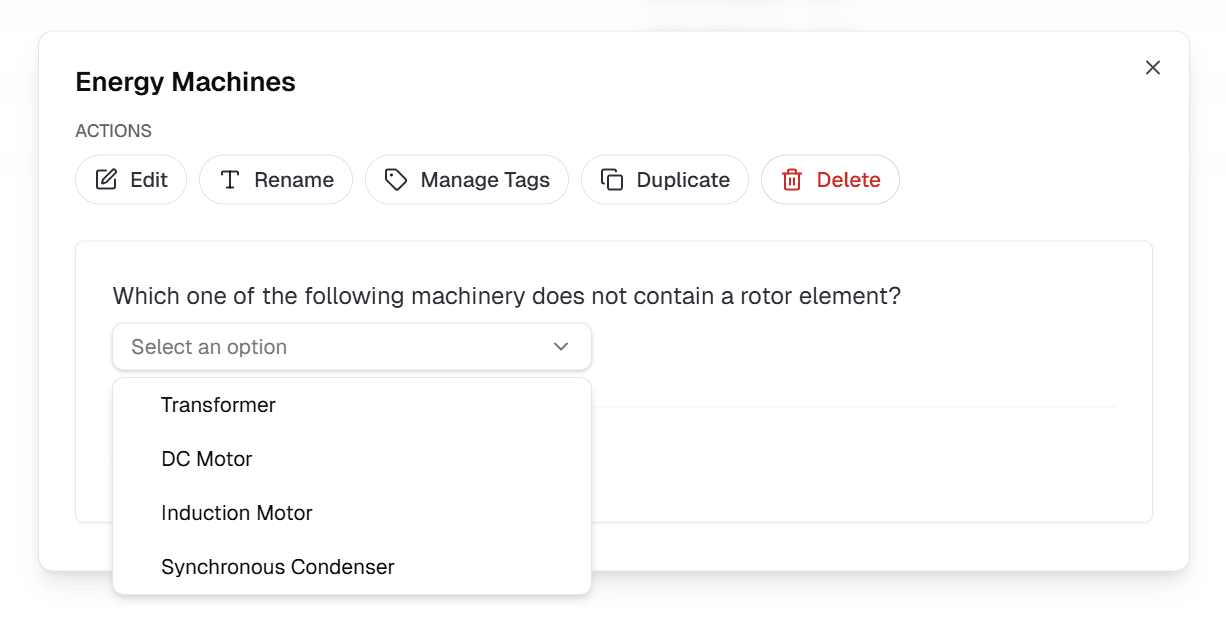
Dropdown text
Inline dropdown menus within a body of text.
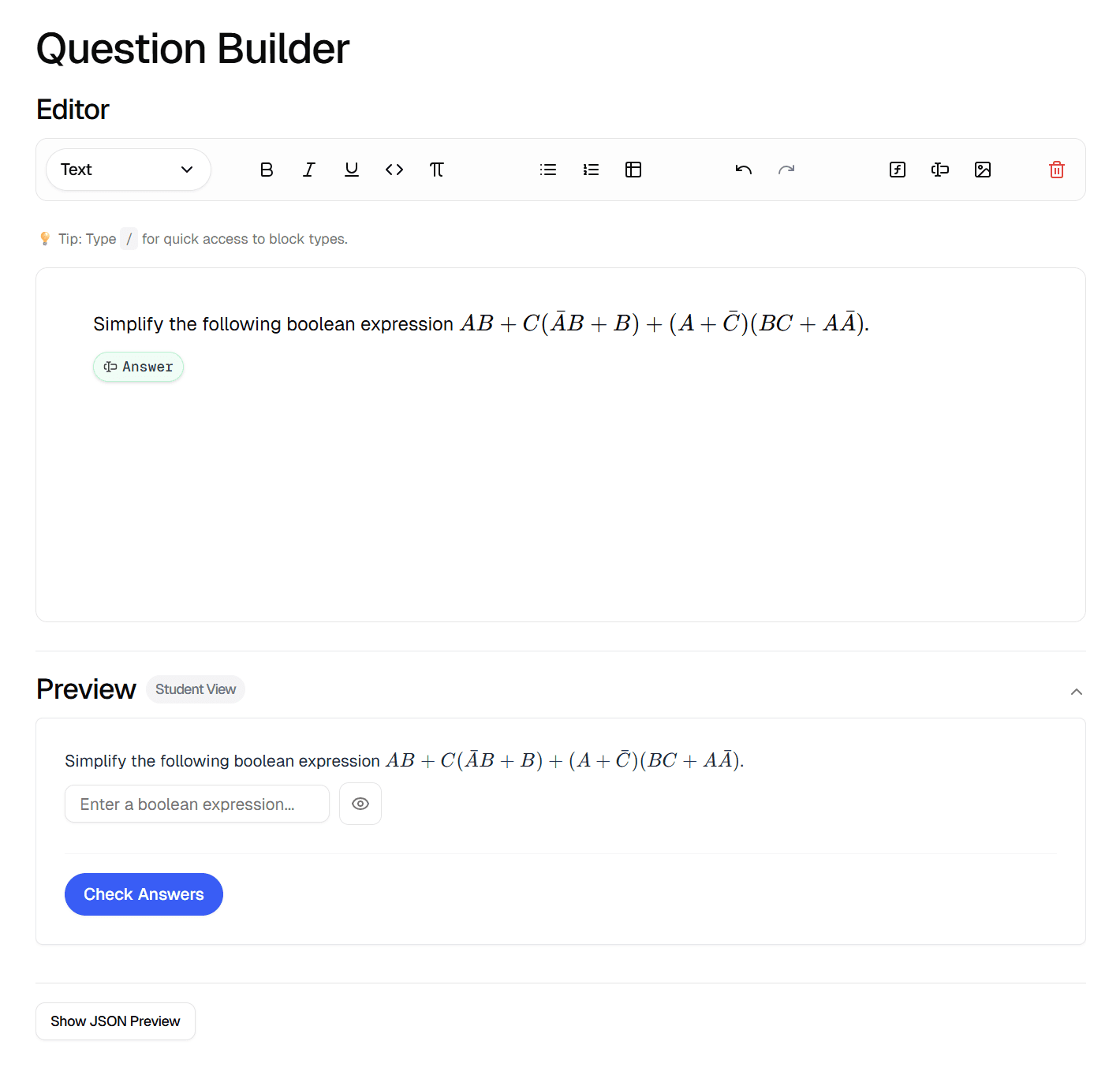
Boolean answers
For simple True/False or Yes/No questions.
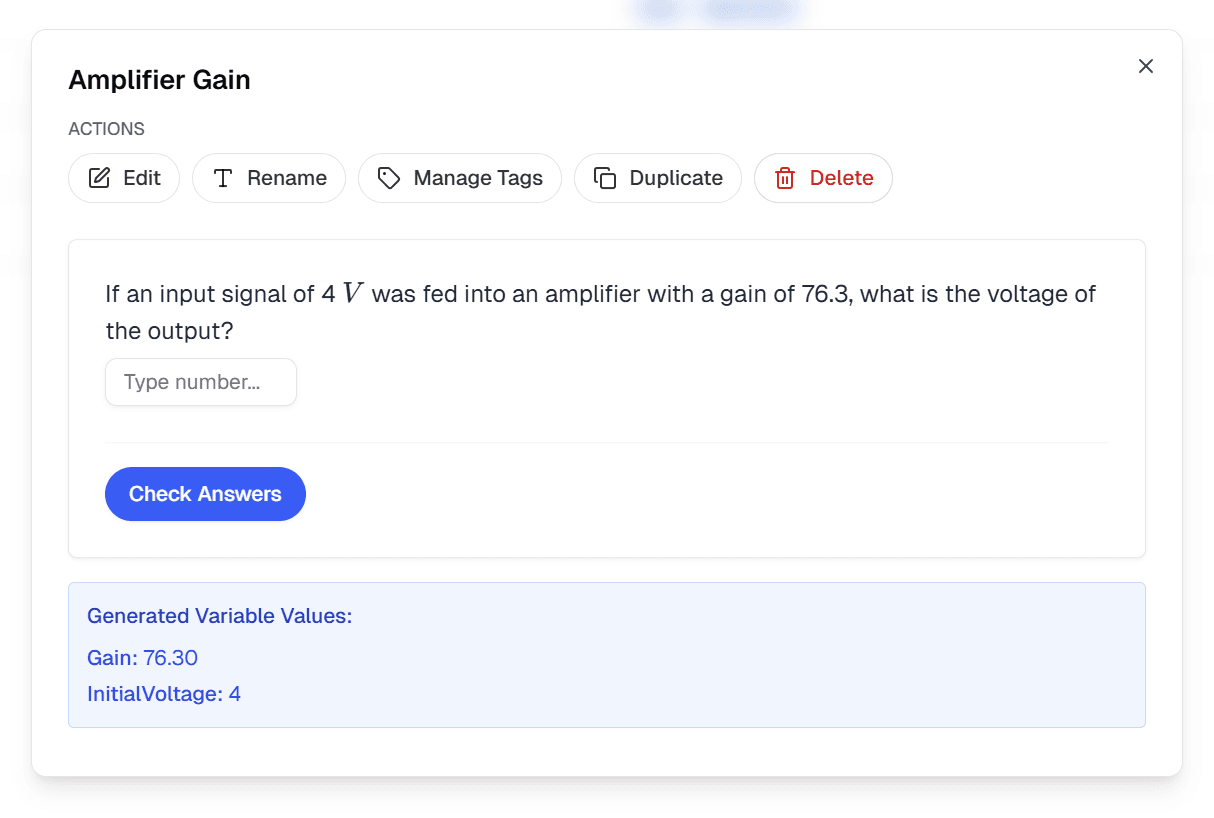
Numerical formula
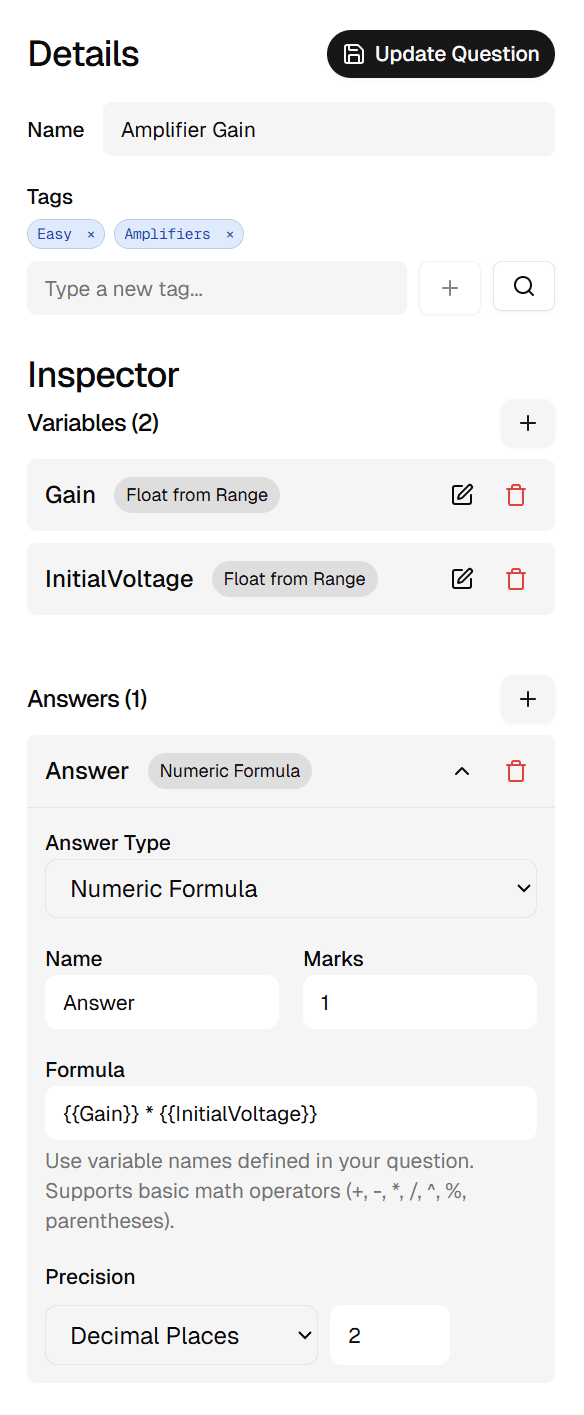
For numerical formula answers, the answer will be calculated in terms of question variables. This allows for dynamic questions where every student gets unique values.
To express the final answer as an equation in terms of the variables, the syntax is to wrap a double pair of curly brackets around the variable name.
Working with variables
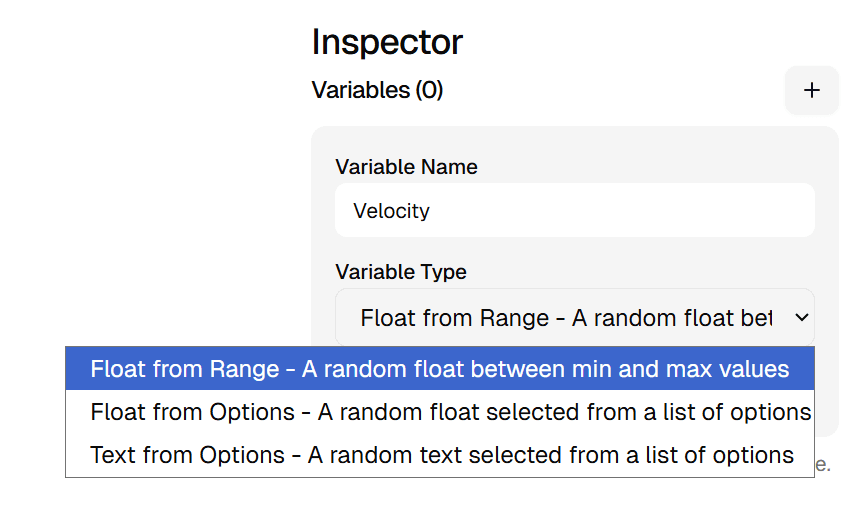
Variables can be created using the right sidebar. You can define variables in either Numerical mode (for ranges and random values) or Text mode (for selecting from a list of strings). To reference variables in the question text box, use the slash command /var. You will then be prompted to select the required variable. Alternatively, you can type $${{variable_name}}$$ to manually link a variable.
Preview and verify
Once created, a student preview can be used to verify the required formatting and behaviour. It is good practice to test both correct and incorrect answers to ensure feedback is displayed as expected.
When you are satisfied, press Create question to save it to your bank.