Assessment Settings
Every class is different. Tandem gives you the controls to run anything from a low-stakes weekly quiz to a strict, time-limited final exam.
Controlling access
You decide exactly when students can access an assessment.
- Draft / Published: Keep an assessment in "Draft" mode while you are building it. Students can never see drafts. Switch to "Published" only when you are ready for them to see it.
- Open / Close Dates: Set a specific window for the assessment. Students cannot start before the Open date, and cannot submit after the Close date.
Time limits
For timed tasks, you can set a Time Limit (e.g. 60 minutes). This starts counting down the moment a student begins their attempt. If the timer runs out, their work is automatically submitted and saved, ensuring they get credit for what they completed.
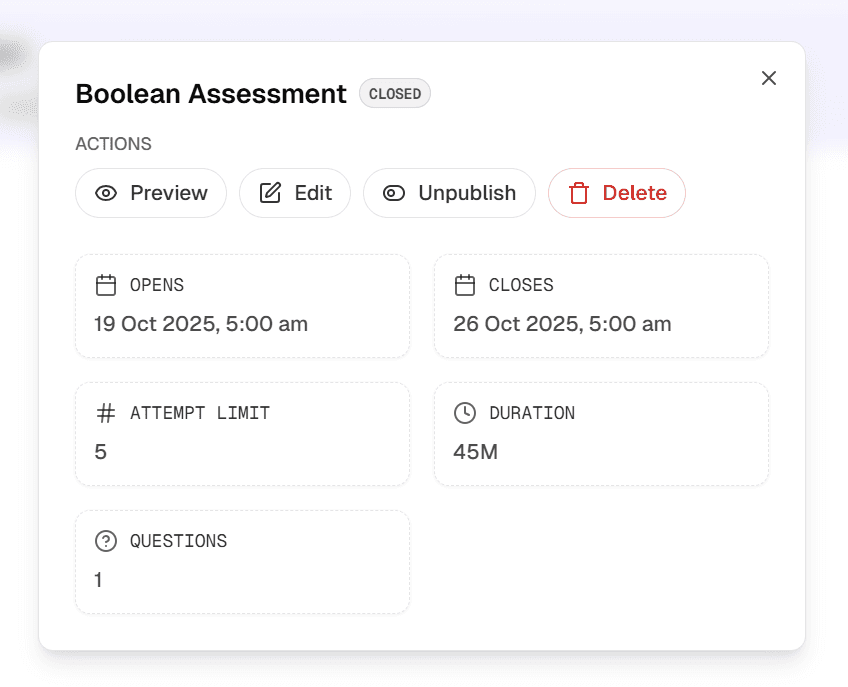
Assessment overview showing dates, limits, and visibility
Managing attempts
Tandem allows you to configure how many times a student can try an assessment.
- Unlimited: Great for practice quizzes where mastery is the goal.
- Single Attempt: Best for formal exams where integrity is paramount.
- Custom Limit: Set a specific number (e.g. 3 attempts) to encourage practice without infinite guessing.
Randomisation
To support academic integrity, you can choose to Randomise Question Order. This means every student sees the questions in a different sequence, reducing the chance of collusion in crowded labs.